
All guides
Listening to the table
Turn on the microphone and GM Companion follows the conversation at your table. When a player names someone, by name, nickname or role, their profile opens before you've reached for your notes.
Start listening
- Click the microphone in the top barThe first time, the speech model downloads (about 150 MB). After that it works offline.
- Talk as you normally wouldWhen someone says “I want to talk to Thorvin” or “let's go see the blacksmith”, Thorvin's profile opens. Anything that doesn't name someone in your campaign is ignored.
- Click the microphone again to stopListening keeps going on every tab until you stop it.
Heard at the table
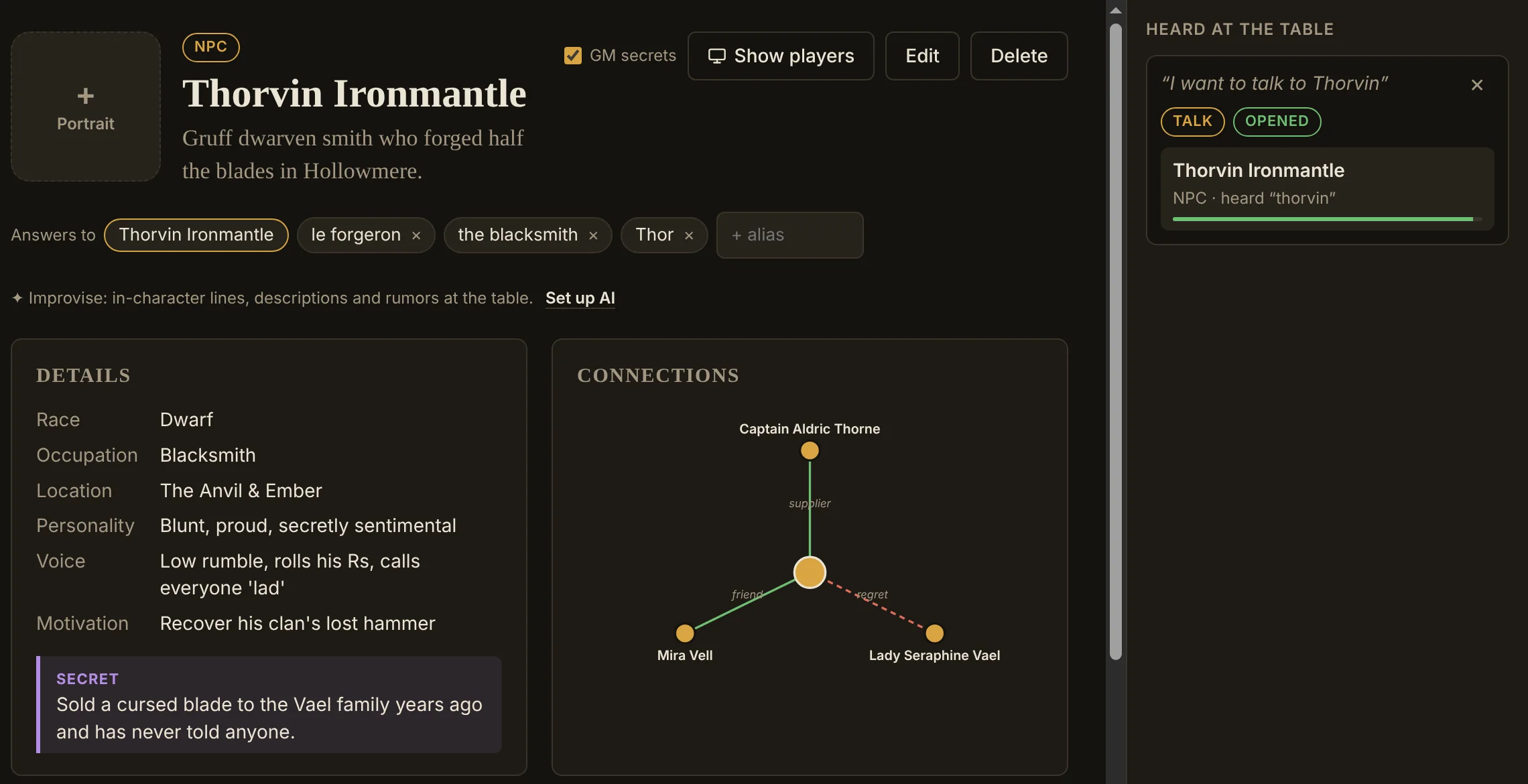
The panel on the right shows what the app heard and who it matched:
- A clear match opens the profile right away, and the card says Opened.
- A less certain match, or two NPCs who could both be “the captain”, waits in the panel for you to click. With an AI model set up, it can settle the tie from what was said just before.
- The last thing heard is always shown, so you can see whether the microphone is picking up the table.
Typing instead of talking
The What did the table say? box in the top bar works exactly like speech. Type “I want to talk to the innkeeper” and press Enter. It's handy when the mic is off, or for a quick lookup without the search box.
Help it recognize names
The app finds entries by their name and everything under Answers to. A few seconds per NPC makes a big difference:
- Add how your players actually say it: “Thor”, “the smith”, “the old dwarf”.
- Add roles and titles: “the captain”, “the harbormaster”.
- If speech keeps mishearing a fantasy name, add the misspelling it hears as a nickname. You'll see it in Heard at the table.
It also understands descriptions. “Talk to the bartender” or “the old dwarf who makes swords” finds the entry that fits, even when no name is said. This works in English and French.
Listening settings
Open Options, then Listening:
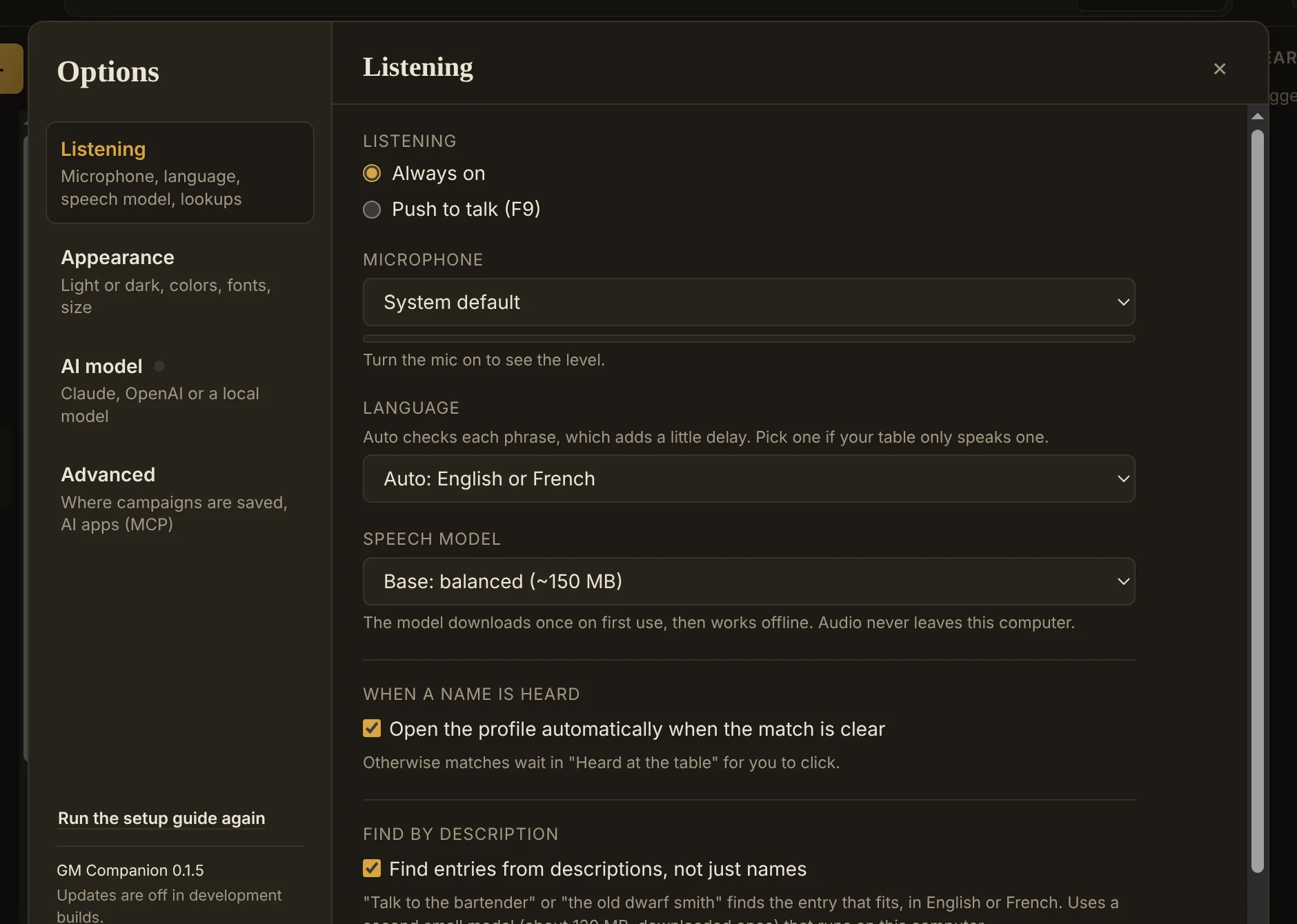
- Listening: Always on, or Push to talk, where the app only listens while you hold F9 (or the on-screen button). Use Always on if you're recording the session.
- Microphone: the system default or a specific one. The level meter shows whether it's picking up the table.
- Language: automatic (English or French, phrase by phrase), or fixed to one. Fixing it is a little faster if your table only speaks one language.
- Speech model: Tiny (about 75 MB, fastest), Base (about 150 MB, the default) or Small (about 450 MB, most accurate, needs a faster computer).
- Open the profile automatically when the match is clear. Turn it off if you'd rather click every match yourself.
- Find entries from descriptions, not just names.
If it doesn't hear anything
- Windows has to allow desktop apps to use the microphone: Settings › Privacy & security › Microphone, then turn on Let desktop apps access your microphone.
- Check that the right microphone is chosen in Options, and watch the level meter while someone talks.
- A laptop microphone works, but one in the middle of the table hears everyone much better.